
WAVLINK USB 3.0/USB C to HDMI
4.4Editor score
Up to 6 monitor support
Multi system compatibility
Compact portable design
This guide compares the top Displaylink Adapter options for Mac and Windows to help you choose the right dual monitor solution for your workflow needs.
Finding the right Displaylink Adapter can transform your single-screen laptop into a powerful dual-monitor workstation. These devices use advanced technology to bypass native video limitations on many modern Mac and Windows laptops.
We evaluated ten top-rated adapters based on performance, compatibility, and build quality. Our analysis covers models supporting dual 4K outputs, various connectivity options, and essential features like power delivery.
Each pick highlights specific strengths and trade-offs to help you decide. Prices and availability change frequently so check current listings before purchasing to ensure you get the best deal available today.
4.4Editor score

4.8Editor score

4.3Editor score
This side-by-side comparison shows key specifications for all ten adapters to help you quickly identify which model matches your specific display and connectivity requirements.



The ACASIS USB C Adapter delivers dual 4K 60Hz displays through a single USB port making it ideal for Mac users needing extra screens. It scores high on performance and build quality with a polished aluminum finish that matches modern laptops.
We may earn a commission when you buy through this link, at no additional cost to you.
Key strengths include the 100W power delivery port which keeps your laptop charged while using external monitors. Three USB-A ports allow you to connect a keyboard mouse and flash drive without additional dongles.
Honest trade-offs involve the need for driver installation and incompatibility with gaming or HDCP content. These limitations are acceptable for office work and multitasking where smooth extended desktops are the main goal.
This adapter is perfect for professionals seeking a reliable dual monitor setup without expensive docks. It offers excellent value for the price and is highly recommended for general productivity tasks.
Transforms your laptop into a full workstation by supporting two crystal-clear 4K displays simultaneously for better multitasking.
The 100W USB-C PD port ensures your laptop stays powered during long work sessions without needing a separate charger.
We may earn a commission when you buy through this link, at no additional cost to you.
This WAVLINK adapter features a hybrid 2-in-1 cable that connects to both USB-C and USB-A ports providing great flexibility for older and newer laptops. It supports dual 4K 60Hz outputs for a smooth extended desktop experience.
We may earn a commission when you buy through this link, at no additional cost to you.
Key strengths include broad system support for Windows macOS and ChromeOS making it easy to share across different devices. The hybrid cable eliminates the need for extra adapters saving you time and money.
Limitations include the requirement to install drivers and no support for gaming or video streaming sites. These are standard trade-offs for DisplayLink technology so focus on productivity tasks where it performs well.
Choose this model if you need a versatile adapter that works with multiple laptop types. It is reliable for office use and offers good value for the features provided.
The built-in hybrid cable allows easy connection to USB-C or USB-A ports adapting to different laptop models effortlessly.
Compatible with Windows macOS and ChromeOS systems making it a flexible choice for diverse office environments.
We may earn a commission when you buy through this link, at no additional cost to you.
The WAVLINK Universal Adapter offers an affordable way to add extra screens to your setup. It uses DisplayLink technology to support up to six monitors on PCs making it unique for budget conscious users.
We may earn a commission when you buy through this link, at no additional cost to you.
Key strengths include the built-in microphone input and audio output which simplify video calls without extra gear. It works with Windows macOS and ChromeOS providing broad compatibility for various users.
The main trade-off is the resolution limit compared to higher-end models and the need for driver installation. These factors are minor for standard office work and web browsing where cost efficiency is priority.
This adapter is ideal for home offices or students needing extra screens without breaking the bank. It provides solid performance for everyday tasks and remains a top budget choice.
Provides a cost effective solution for adding multiple monitors to your workspace while maintaining reliable performance.
Built-in microphone input allows you to connect headsets directly for clear audio during video conferencing.
We may earn a commission when you buy through this link, at no additional cost to you.
Plugable USB C Adapter is a premium option designed specifically for MacBook users needing dual external displays. It bypasses the single display limit on M1 M5 chips enabling true multitasking with two 4K screens.
We may earn a commission when you buy through this link, at no additional cost to you.
Key strengths include lifetime support from a dedicated team ensuring you get help whenever needed. The build quality is robust and the adapter is recognized as a top choice for Mac productivity.
The main drawbacks are the higher price and the need to install drivers on Mac which can be a minor setup step. These are worth it for the reliability and support provided by a trusted brand.
Choose this adapter if you prioritize quality and long-term support for your MacBook. It is perfect for professional environments where stability and customer service are critical.
Designed specifically to break the native single display limit on many Apple Mac models including M1 to M5.
Includes lifetime support from a dedicated team providing peace of mind for long-term use.
We may earn a commission when you buy through this link, at no additional cost to you.
This Plugable adapter offers flexible connectivity supporting both USB-C and USB-A ports without extra dongles. It drives dual 4K 60Hz displays using the DL-6950 chipset ensuring stable performance for most users.
We may earn a commission when you buy through this link, at no additional cost to you.
Key strengths include the integrated USB-A adapter which stays attached to the device making it easy to switch between laptop types. ChromeOS users benefit from plug and play functionality with minimal setup.
Limitations include that Mac is not recommended due to driver complexity and Windows requires installation. These are typical for DisplayLink devices so focus on Windows and ChromeOS environments for best results.
Select this adapter if you need versatility and reliability for Windows or ChromeOS systems. It is a solid choice for IT deployments and home offices requiring consistent dual screen support.
Integrated USB-A adapter stays with the device making it easy to move between different computer setups.
Powered by DL-6950 chipset providing reliable dual display performance without needing external GPUs.
We may earn a commission when you buy through this link, at no additional cost to you.
The StarTech Mini Dock is a compact solution for laptops with USB-A ports needing extra screens. It includes dual DisplayPort outputs and a Gigabit Ethernet port making it a complete mini dock.
We may earn a commission when you buy through this link, at no additional cost to you.
Key strengths include the tiny footprint which saves desk space and the included Ethernet for stable internet without a laptop port. It is bus powered so no extra power adapter is required.
The short cable may limit placement flexibility and USB-A compatibility means newer Thunderbolt laptops need a cable adapter. These are manageable trade-offs for a highly portable device.
Choose this dock if you prioritize portability and need Ethernet alongside video outputs. It is great for travel or small workspaces where space is limited.
Compact form factor ideal for small desks or portable setups without sacrificing connectivity.
Includes a GbE port for reliable wired network connections alongside video outputs.
We may earn a commission when you buy through this link, at no additional cost to you.
The ACASIS Dual DP Adapter holds the highest rating in this roundup thanks to excellent build quality and performance. It offers two DisplayPort outputs with 4K 60Hz resolution ideal for high-end monitors.
We may earn a commission when you buy through this link, at no additional cost to you.
Key strengths include the 100W PD charging and three USB-A ports making it a complete hub for peripherals. The aluminum construction ensures effective heat dissipation for stable long sessions.
Limitations include that it only supports DisplayPort so you need HDMI cables for those monitors. Driver installation is also required which adds a setup step but pays off in stability.
Select this adapter if you own DP monitors and want a premium hub for your MacBook. It combines reliable video with essential connectivity and power delivery in one sleek unit.
Achieves the highest user rating due to consistent performance and reliable hardware construction.
Combines video charging and peripheral ports for a comprehensive docking solution in a small device.
We may earn a commission when you buy through this link, at no additional cost to you.
This WAVLINK adapter stands out with its DL-Chip encryption providing enterprise level data protection for secure environments. It supports dual 4K 60Hz outputs for a sharp extended desktop on Mac and Windows.
We may earn a commission when you buy through this link, at no additional cost to you.
Key strengths include the advanced security features which safeguard sensitive information during daily operations. It is compatible with Windows macOS and ChromeOS offering broad utility across devices.
The main trade-off is the need for driver installation and lack of Linux support. These limitations are acceptable for business users prioritizing security and stability over open system flexibility.
Choose this adapter for corporate or secure home office setups where data protection is key. It combines strong security with reliable dual screen performance for professionals.
Equipped with encrypted DL-chip technology ensuring enterprise level data protection for secure environments.
Trusted for secure corporate environments offering stable performance alongside strong security features.
We may earn a commission when you buy through this link, at no additional cost to you.
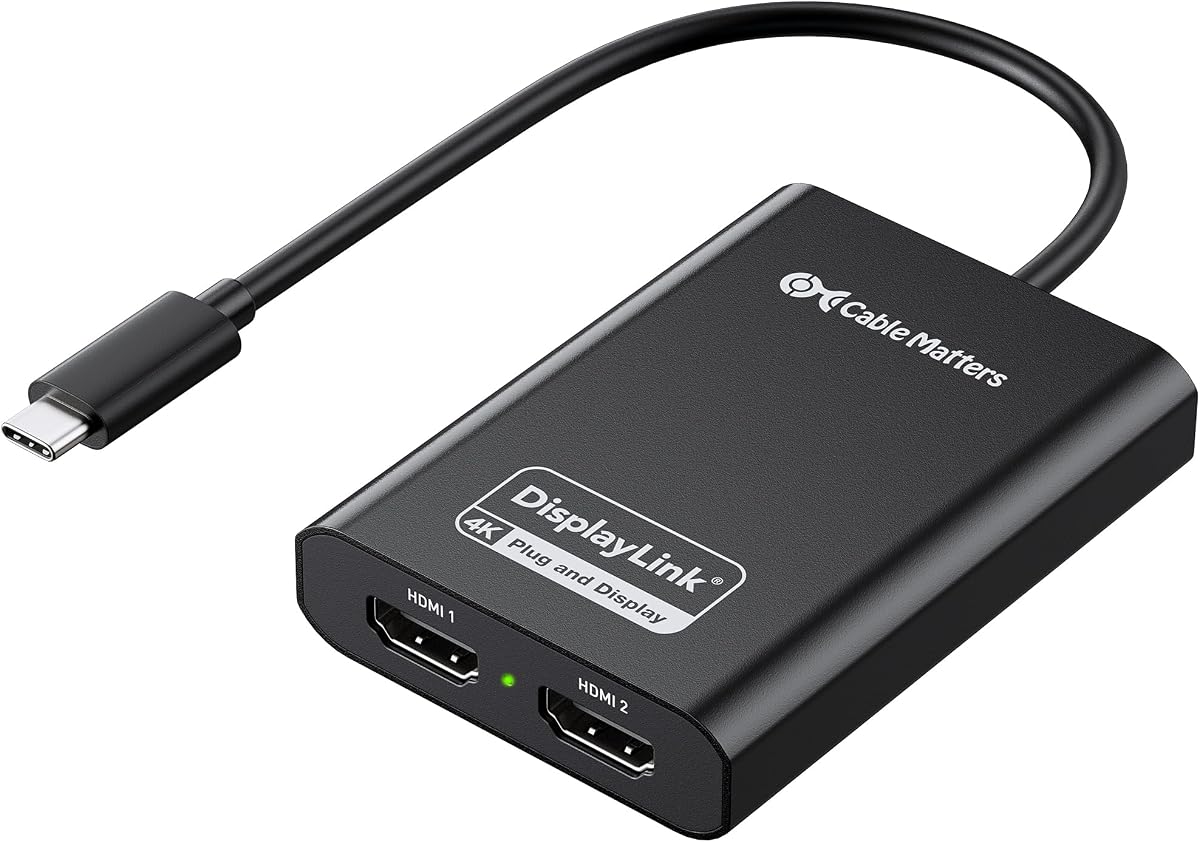
The Cable Matters Certified Adapter uses DisplayLink technology certified for reliable performance across many systems. It turns one USB-C port into two HDMI outputs supporting dual 4K 60Hz displays for productivity.
We may earn a commission when you buy through this link, at no additional cost to you.
Key strengths include the durable aluminum housing which helps dissipate heat for stable operation. It works with macOS and Windows but requires Screen Recording permission on Mac for full functionality.
Limitations include the need for a modern CPU for best performance and the Mac permission step. These are minor for most users seeking a certified reliable solution for multi-screen work.
Select this adapter if you want a certified option with solid build quality. It is a good middle ground for Mac and Windows users needing dual HDMI outputs.
Uses DisplayLink technology that is certified to work reliably across different operating systems.
Aluminum housing efficiently dissipates heat to maintain stable performance during long use.
We may earn a commission when you buy through this link, at no additional cost to you.
The Sonnet Adapter supports high refresh rates up to 144Hz on lower resolutions making it versatile for different monitor types. It connects two 4K displays or lower resolutions via Thunderbolt or USB 3 ports.
We may earn a commission when you buy through this link, at no additional cost to you.
Key strengths include built-in audio support and compatibility with M1 Pro Max chips which broadens its appeal. It expands your workspace efficiently allowing multiple apps on different screens easily.
Limitations include requiring Thunderbolt or USB 3 ports which may not be present on all older laptops. This restricts some use cases but fits well with modern Mac and Windows machines.
Choose this adapter if you need support for high refresh rate monitors alongside 4K. It is a flexible choice for multimedia and productivity on M1 Pro Max notebooks.
Supports higher refresh rates up to 144Hz on 1080p or 1440p displays for smoother visuals.
Includes audio support allowing sound to be routed through the adapter for connected displays.
We may earn a commission when you buy through this link, at no additional cost to you.
Selecting the right Displaylink Adapter requires understanding several key factors that impact performance compatibility and usability in your specific workspace.
Most modern adapters support dual 4K at 60Hz which is ideal for crisp visuals and smooth scrolling. Ensure the adapter you choose matches your monitor specifications so you do not lose performance by choosing a lower tier model.
Look for products that explicitly state 4K 60Hz support to avoid flickering or lag during use.
DisplayLink drivers are required for Mac and Windows systems but ChromeOS often works plug and play. Always check that the specific model supports your operating system version before purchasing to avoid compatibility headaches later.
Verify Mac permission requirements like Screen Recording access to ensure smooth setup.
Check whether your laptop has USB-C or USB-A ports as some adapters are specific to one type. Hybrids offer flexibility but dedicated USB-C adapters often provide faster data and power delivery options.
Choose an adapter with the correct physical port match for your primary laptop.
Many adapters include a USB-C Power Delivery port to charge your laptop while using external screens. This feature reduces cable clutter and ensures your device does not drain during long work sessions.
Prioritize models with 100W PD if you need to charge high power laptops like MacBook Pro.
Some adapters double as hubs with extra USB-A ports for keyboards mice and storage. This reduces the need for multiple dongles and keeps your desk organized for better workflow.
Count how many peripherals you need and choose an adapter with enough available ports.
Aluminum housings dissipate heat better than plastic which helps maintain stable performance over time. A sturdy build also protects the internal electronics from wear and tear during travel.
Opt for metal construction if you plan to move the adapter frequently or use it long hours.
Reliable brands often offer lifetime support or long warranties which are crucial for troubleshooting drivers or hardware issues. Check the company reputation for customer service before buying expensive models.
Prioritize companies with dedicated support teams for faster resolution of technical problems.
DisplayLink technology generally does not support HDCP protected content like Netflix or Hulu on external screens. This is a hardware limitation so plan to watch media on the laptop screen instead.
Understand this restriction early to avoid frustration when trying to play encrypted video content.
Begin by downloading the latest DisplayLink driver from the official website before connecting the adapter. This ensures your operating system recognizes the device immediately without errors during setup.
Once installed plug the adapter into a powered USB 3.0 or USB-C port for best performance. Connect your HDMI or DisplayPort monitors and arrange them in your system settings to extend your desktop.
To maintain longevity keep the adapter in a cool dry place when not in use. Avoid bending cables sharply and unplug during system shutdowns to prevent potential electrical issues.
Yes you typically need to install the DisplayLink driver on Windows and macOS before the adapter works. ChromeOS often supports it plug and play but other systems require manual installation for display output to activate.
DisplayLink adapters are designed for productivity and do not support gaming or HDCP content like Netflix. You will not get video output on external screens for these tasks due to security protocol limitations.
Yes many adapters in this list work with M1 MacBook Air by bypassing the native single external display limit. You must install the DisplayLink driver and allow screen recording permissions for it to function.
Most adapters support two external monitors simultaneously though some specialized models allow up to six on PCs. This depends on the DisplayLink chipset used and system resources available.
Many adapters support dual 4K at 60Hz which is the standard for high definition displays. Always verify the specific resolution limits in the product specs to match your monitor requirements.
Some adapters include a USB-C Power Delivery port to charge your laptop while driving external screens. Check the product description for PD wattage to ensure it meets your laptop power needs.
The ACASIS Dual DP Adapter offers the best overall value with excellent build quality and high ratings. It serves as a top choice for users needing reliable dual display performance without compromising on features.
Prioritize adapters with power delivery and peripheral ports if you want a complete hub solution. This ensures your workspace remains organized and your laptop stays powered throughout your workday.
Remember that prices and availability fluctuate so verify current listings before finalizing your purchase. Choose a model that aligns with your specific system requirements for the best long-term experience.