
UGREEN HDMI KVM Switch 4 Computers Share 1 Monitor 4K@60Hz 6 USB Ports
4.7Editor score
6 USB ports total mix of 3.0 and 2.0
EDID emulation prevents screen flicker
Wide OS compatibility including Linux
This guide compares the top 10 KVM switches for 4 computers to help you choose the right model for your multi-PC workstation setup needs.
Managing multiple computers on a single desk can become chaotic without the right hardware solution. A reliable KVM switch for 4 computers allows you to control four different systems using one monitor keyboard and mouse. This setup reduces clutter and increases efficiency for professionals who need to switch between machines frequently.
We evaluated ten top-rated models based on video resolution support USB port counts and switching methods. Each product was analyzed for compatibility with modern operating systems and ease of installation. Our goal is to help you find a unit that fits your specific workflow without unnecessary complexity or cost.
Every selection below highlights key features like 4K support EDID emulation and remote control options. We provide detailed breakdowns of pros and cons to guide your decision. Please note that product availability and pricing can change frequently so check the latest details before purchasing.
4.7Editor score
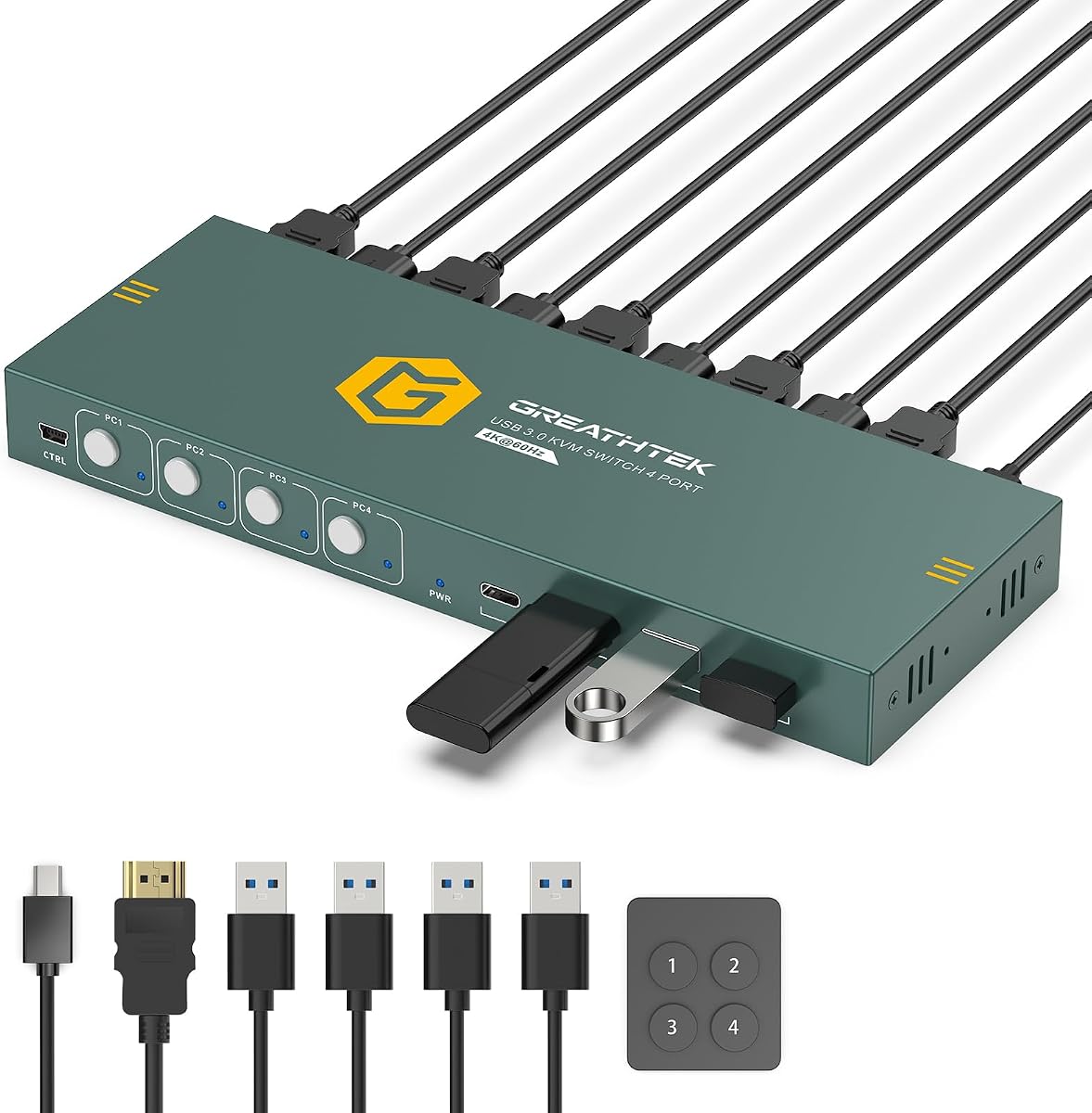
4.8Editor score

4.7Editor score
The following table provides a side-by-side comparison of all ten models. It highlights their primary video capabilities connection types and unique features to help you quickly identify the best fit for your specific workspace requirements.
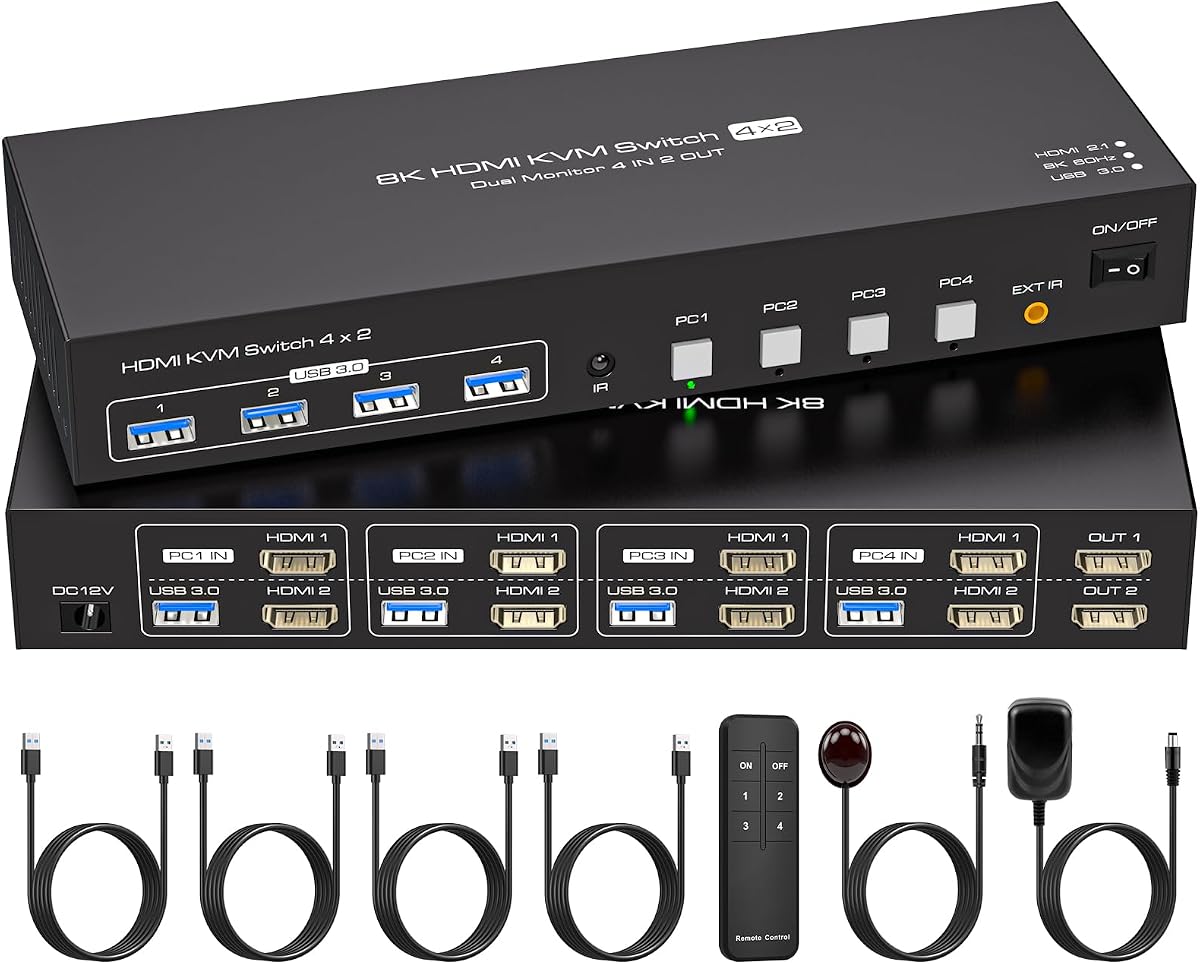


This model stands out as the top choice for users needing a balance of performance and usability. With a high rating it offers reliable switching between four computers using a single monitor and set of peripherals. The video quality is sharp making it suitable for both work and media consumption.
We may earn a commission when you buy through this link, at no additional cost to you.
The HDMI 2.0 support ensures smooth 4K video at 60Hz which is ideal for modern displays. It includes a wired remote which makes switching easy even when the unit is tucked away under a desk. USB 3.0 ports provide fast data transfer for drives and other devices.
While it lacks keyboard hotkey switching the physical remote and panel buttons work well for most users. The EDID adaptive feature helps maintain display settings when switching sources reducing flickering. The package includes most cables needed for a quick start.
It is perfect for home offices or IT stations managing multiple machines. If you need high resolution video and reliable peripheral sharing this model delivers excellent performance. It remains a strong recommendation for general users seeking efficiency.
Supports up to 3840×2160 at 60Hz for crisp and smooth visuals on modern displays.
Provides both front panel buttons and a wired remote to fit different desk layouts.
We may earn a commission when you buy through this link, at no additional cost to you.
This unit is designed for users who need to share two monitors across four computers. It supports impressive resolutions up to 8K and 4K at 120Hz which exceeds most current monitor needs. The ability to switch between extended and copy modes adds flexibility for different tasks.
We may earn a commission when you buy through this link, at no additional cost to you.
The built-in EDID emulation ensures that your display settings stay consistent when you switch PCs. This prevents windows from rearranging themselves which is a common frustration. The infrared remote allows for convenient access without needing to reach under the desk.
However you must ensure each computer has two HDMI ports for this to work correctly. This requirement may limit compatibility with laptops that lack extra video outputs. An external power adapter is required to maintain stable signal delivery at high resolutions.
It is an excellent choice for power users with dual monitor setups. If you need high resolution and dual screen support across multiple systems this switch offers great performance. It helps create a professional workspace that handles complex displays with ease.
Allows four computers to share two monitors simultaneously for expanded workspace options.
Offers both copy and extended modes to suit different multitasking needs.
We may earn a commission when you buy through this link, at no additional cost to you.
This UGREEN model offers a great combination of features and affordability. It supports four computers sharing one monitor and provides six USB ports for all your peripherals. The build quality is solid and it handles common office tasks without issues.
We may earn a commission when you buy through this link, at no additional cost to you.
The EDID emulation feature helps keep your screen settings stable when switching sources. You simply hold a button to enable it and then forget about it. The wired controller lets you place the switch out of reach while keeping the buttons easy to access.
Note that this unit does not support docking stations which is a common limitation for many KVMs. Also ensure you connect the power supply for stable operation. These minor steps are usually worth the cost savings you get.
It is ideal for budget conscious users who still want 4K video and USB sharing. If you need a reliable switch that works across Windows Mac and Linux this is a strong pick. It keeps your workspace organized and your devices connected.
Six USB ports allow you to connect more devices simultaneously without extra hubs.
EDID emulation ensures your windows and resolution stay put when switching PCs.
We may earn a commission when you buy through this link, at no additional cost to you.
This model is built for advanced setups that need four monitor outputs from four computers. It combines HDMI and DisplayPort connections to give flexibility in how you connect your displays. The audio jack is a nice bonus for streaming or conference calls.
We may earn a commission when you buy through this link, at no additional cost to you.
It supports up to 8K resolution which is future proof for high end monitors. The remote control has a comfortable touch feel and helps keep the desk clear. You can hide the main unit under the table and still have easy access to switches.
Each computer needs multiple ports to use all four monitors which can be complex to set up. This complexity may be overkill for standard office users. However for specialized workstations it provides a professional grade solution.
Choose this if you need maximum screen real estate and high resolution. It is perfect for graphics or video editing environments where display quality matters. The price reflects its advanced capabilities and robust feature set.
Enables four computers to share four displays for maximum workspace efficiency.
Includes a 3.5mm audio port for direct sound connection without extra cables.
We may earn a commission when you buy through this link, at no additional cost to you.
This switch is designed for users who want high refresh rate video on their monitors. It supports 4K at 120Hz which provides smoother motion than standard 60Hz units. The HDMI 2.1 support ensures it can handle modern bandwidth needs.
We may earn a commission when you buy through this link, at no additional cost to you.
The IR extension receiver lets you place the remote where you want it. This is useful if the switch is hidden under your desk. The package includes a power supply and all necessary cables for quick installation.
To get the best performance you need computers and monitors that support 4K120Hz. Otherwise it will fall back to lower rates. The warranty offers peace of mind for a longer period than typical products.
It is a good choice for gamers or video editors who need smooth motion. If your setup supports high refresh rates this switch will deliver the benefits. It helps maintain productivity and enjoyment across all connected systems.
Delivers 4K resolution at 120Hz for smoother and more fluid visuals.
Uses an IR receiver to place the remote control anywhere for easy access.
We may earn a commission when you buy through this link, at no additional cost to you.
This model features a premium aluminum body that helps with heat dissipation. It supports up to 8K resolution which is excellent for future proofing. The design is compact and looks professional on any desk.
We may earn a commission when you buy through this link, at no additional cost to you.
It works with a wide range of devices from PCs to consoles. The USB 3.0 ports ensure fast data transfer for your peripherals. However you must connect it to a power source via USB-C for stability.
The lack of EDID emulation may cause screen flicker when switching sources. This means your display might take a moment to re-adjust. This is a trade-off for the price and build quality.
It is great for those who prefer solid metal builds. If you need high resolution support and don't mind manual adjustments this works well. It keeps your setup looking clean and functional.
Aluminum casing provides durability and helps manage heat during operation.
Supports 8K@60Hz for compatibility with next generation monitors.
We may earn a commission when you buy through this link, at no additional cost to you.
This unit focuses on ease of use with a straightforward design. It allows four computers to share one monitor and peripherals easily. The wired remote keypad has clear labels so you know which button to press.
We may earn a commission when you buy through this link, at no additional cost to you.
Adaptive EDID helps identify displays so switching is smoother. The 4K@60Hz support makes it suitable for modern work monitors. LED indicators show you exactly which computer is currently active.
While it is very simple you cannot use keyboard hotkeys to switch. This might be a downside for power users who want speed. But for general office use it is often enough.
It is a solid choice for small offices or home setups. If you want something that works right out of the box this fits. It helps keep cables organized and your desk tidy.
Wired remote with clear buttons makes switching between PCs simple and fast.
LED lights show you at a glance which computer is active.
We may earn a commission when you buy through this link, at no additional cost to you.
This switch offers a nice mix of USB-A and USB-C ports. It allows you to connect various devices like drives and webcams easily. The lifetime protection plan gives extra confidence in your purchase.
We may earn a commission when you buy through this link, at no additional cost to you.
Adaptive EDID ensures your monitor settings stay consistent. The 4K@60Hz support works well for standard office work. It also works with gaming consoles which adds value for home use.
It does not have high refresh rate support so it may not be ideal for gaming. But for shared desktops and peripherals it is reliable. The remote control helps keep your desk clean.
It is a good option for mixed device setups. If you need both USB-A and USB-C ports this is useful. It simplifies your workspace and supports multiple systems efficiently.
Mix of USB-A and USB-C ports supports a wider range of modern devices.
Includes a lifetime protection plan for added long term security.
We may earn a commission when you buy through this link, at no additional cost to you.
This switch lets you share three monitors across four computers. It uses a mix of HDMI and DisplayPort to achieve this. The DisplayPort support allows up to 4K at 144Hz for fast refresh rates.
We may earn a commission when you buy through this link, at no additional cost to you.
A wired remote is included so you do not have to reach under the desk. The package also has power adapter and cables. This makes setup easier than buying separate cables.
You must have computers with enough video ports to support three screens. This may require discrete graphics cards on some systems. But for users who need multiple screens it is a powerful tool.
It is ideal for trading stations or editing rooms. If you need more screens without buying extra monitors for each PC this helps. It centralizes your workspace and improves productivity.
Allows four computers to share three monitors for expanded productivity.
DisplayPort support enables up to 144Hz refresh for smooth visuals.
We may earn a commission when you buy through this link, at no additional cost to you.
This model features an EDID emulator that keeps your display settings locked. When you switch computers your windows stay in place without rearranging. This is very helpful for workflow efficiency.
We may earn a commission when you buy through this link, at no additional cost to you.
It supports two monitors for each computer allowing for expanded screens. The 4K@120Hz capability means you get smooth video for high refresh displays. IR remote helps you access switches easily.
Each computer needs two HDMI ports so you must plan your setup. If your PC lacks extra ports you may need adapters. This extra requirement can be a hurdle for some users.
Choose this if you value stable display settings across systems. It is great for users who hate windows jumping around when they switch. The dual monitor support adds real value for productivity.
EDID emulator keeps your window positions fixed across all connected computers.
Allows four computers to share two monitors for expanded workspace.
We may earn a commission when you buy through this link, at no additional cost to you.
Selecting the right KVM switch requires understanding your display needs and peripheral setup. Here are key factors to consider before making your decision.
Look for units that support at least 4K at 60Hz to match modern monitors. Higher refresh rates like 120Hz may be needed for smooth motion in media or design work. Check if the switch supports the resolution you actually need to avoid bandwidth bottlenecks.
Ensure the switch matches your monitor capabilities for best results.
Decide if you need to share one monitor or multiple screens. Dual or triple monitor KVMs provide more workspace but cost more and require more ports on your computers. A single monitor setup is simpler and cheaper for basic users.
Choose the monitor count based on your daily tasks and screen real estate needs.
Check how many USB ports are provided and their version. USB 3.0 is preferred for fast data transfer with drives and printers. Some models offer extra USB-C ports which may be useful for modern devices.
Ensure there are enough ports for your keyboard mouse and other peripherals.
KVMs may offer buttons on the panel a wired remote or keyboard hotkeys. Wired remotes are helpful if the unit is hidden under the desk. Hotkey switching is faster but not all models support it.
Pick a switching method that fits your workspace layout and workflow.
EDID emulation keeps your display settings consistent when you switch computers. Without it your monitor might adjust resolution or rearrange windows every time. This feature improves stability especially for dual monitor setups.
Prioritize models with EDID support for a smoother switching experience.
Some KVMs include necessary HDMI USB and power cables. Others may require you to buy cables separately. Verify what is in the box to avoid extra costs during setup.
Check the package contents to ensure you have everything you need.
Confirm the switch works with your operating systems like Windows Mac or Linux. Some units also support consoles or devices like Raspberry Pi. Driver-free plug and play is usually preferred for ease of use.
Ensure broad OS support to match your existing devices.
Most KVM switches need an external power adapter for stable operation at high resolutions. USB powered models exist but may struggle with data bandwidth. Always plan for a nearby outlet for your switch.
Verify that a power adapter is included or available for your chosen model.
Start by connecting each computer to the switch using HDMI cables for video and USB cables for peripheral data. Plug in your monitor keyboard mouse and other devices to the KVM switch. Ensure the power adapter is connected for stable signal delivery.
Use the panel buttons or remote control to switch between computers. If your switch supports hotkeys check the manual to learn the specific key combination. This allows for seamless switching without touching the physical buttons.
Keep the switch away from direct heat sources and dust. Clean the ports occasionally with compressed air to maintain connection quality. Proper care ensures long term reliability and performance of your hardware.
Yes high resolution video requires high bandwidth cables. For 4K at 60Hz use HDMI 2.0 or higher cables. For higher refresh rates you may need HDMI 2.1 or DisplayPort 1.4 cables depending on your switch.
You can use a KVM switch with laptops that have HDMI and USB ports. However ensure your laptop supports external video output. Some laptops may not work well if they are in sleep mode when switching.
Flickering often happens without EDID emulation. This feature keeps display settings stable. Check your switch settings and enable EDID emulation if available to fix this issue.
Most HDMI KVMs support gaming consoles like PS5 Xbox or Switch. Ensure your console supports HDMI output. Note that some consoles may require specific cable speeds for best performance.
No most modern KVM switches are plug and play devices. They work without additional drivers on Windows Mac and Linux systems. Just connect the cables and you are ready to use.
You can turn off computers normally using the power button or operating system. The switch does not power off computers automatically. Always shut down systems properly before unplugging cables.
The right KVM switch can transform your multi computer workspace into a streamlined environment. Whether you need basic single monitor sharing or advanced dual screen setups there is a model for you.
Prioritize video resolution and USB port count based on your daily tasks. EDID emulation and remote control options also add significant value for ease of use.
Always check current availability and ensure cables are included before buying. A well chosen KVM switch will save time and keep your desk organized for years.